
If you’ve ever spent hours perfecting a 3D model—only to import it into Source Filmmaker and see missing textures, broken animations, or nothing at all—you’re not alone. It’s one of the most common frustrations beginners face.
That’s where SFM Compile comes in.
At its core, SFM Compile is what transforms your raw 3D assets into something Source Filmmaker can actually use. Without it, even the best-looking model won’t load properly, no matter how much effort you’ve put into it.
This guide walks you through the entire process—from understanding the basics to fixing common errors—so you can compile models with confidence and avoid the pitfalls that trip up most newcomers.
What Is SFM Compile?
What Does SFM Compile Mean?
SFM Compile is the process of converting 3D models into a format that the Source Engine understands.
Programs like Blender or Maya export models as FBX or OBJ files. However, Source Filmmaker doesn’t support those formats directly. Instead, it relies on compiled files such as:
.MDL.VVD.VTX.PHY
The compile process takes your original assets and converts them into these formats so SFM can load, display, and animate them correctly.
Why Compilation Is Required
Without compiling your model:
- It won’t appear in Source Filmmaker
- Textures won’t load properly
- Animations won’t function
- Physics won’t behave as expected
Compilation also does more than just convert files. It:
- Optimizes models for the Source Engine
- Connects textures and materials
- Defines animations and sequences
- Adds physics and collision data
In short, it’s what turns a raw model into a working asset.
How SFM Compile Fits Into the Workflow
To understand SFM Compile properly, it helps to see where it fits in the bigger picture:
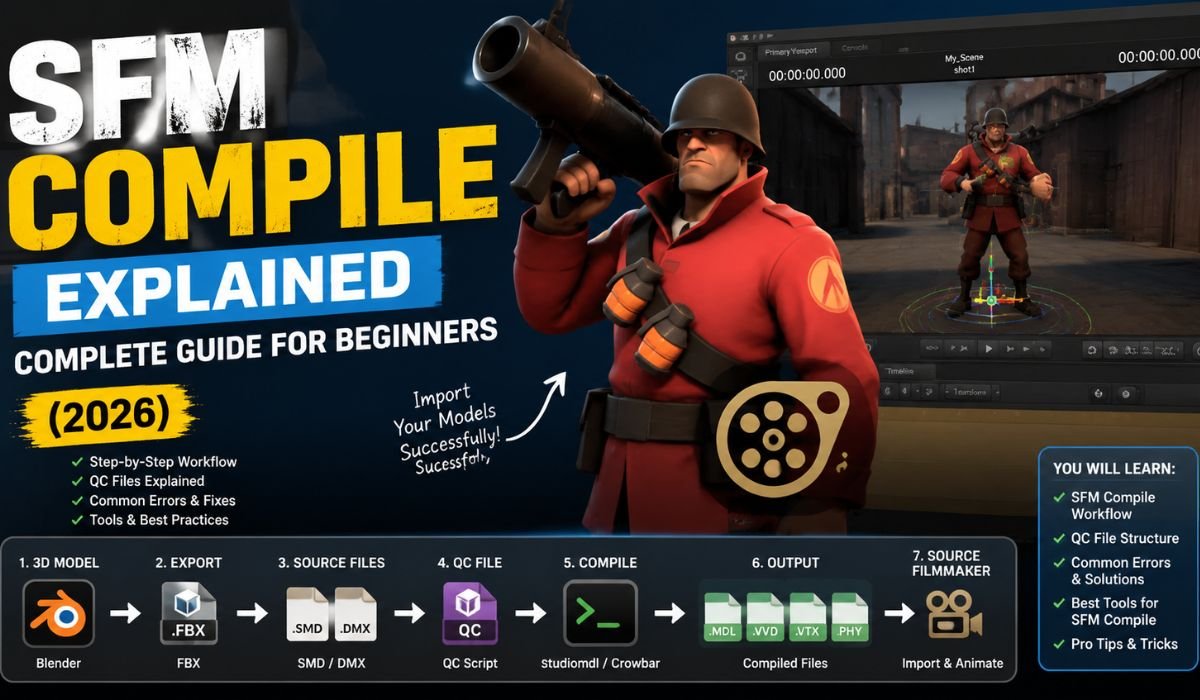
Blender → FBX → SMD/DMX → QC File → studiomdl/Crowbar → MDL + VVD + VTX + PHY → Source FilmmakerThink of the QC file as your instructions, and the compiler as the tool that follows them. If either one is incorrect, the final result won’t work as expected.
Understanding the SFM Compile Workflow
Stage 1 – Create Your Model
Everything begins in a 3D modeling program. Most beginners use Blender because it’s free and powerful, while professionals often prefer Maya or 3ds Max.
At this stage, you:
- Build the model
- Add textures
- Create a skeleton (if needed)
- Prepare animations
Stage 2 – Export Your Model
Once your model is ready, you export it—usually as an FBX file.
However, this isn’t the final format. For SFM, the model must be converted into:
- SMD (Source Model Data)
- DMX (a newer Source format)
These formats are required for the compile process.
Stage 3 – Prepare Assets
Before compiling, everything needs to be organized properly.
This includes:
- Model files (SMD/DMX)
- Texture files (VTF)
- Material files (VMT)
- QC file
A messy setup is one of the fastest ways to run into errors later.
Stage 4 – Compile the Model
This is where SFM Compile happens.
You use tools like:
- Crowbar (beginner-friendly)
- studiomdl.exe (advanced, command-line)
These tools read your QC file and generate the compiled files needed by SFM.
Stage 5 – Test in Source Filmmaker
Finally, you load your compiled model into SFM.
Check for:
- Correct textures
- Proper scaling
- Working animations
- Functional physics
If something doesn’t look right, the compile log will usually point you in the right direction.
Software You’ll Need for SFM Compile
Essential Tools Overview
| Tool | Purpose | Beginner Friendly | Free |
|---|---|---|---|
| Crowbar | Compile/decompile models | Yes | Yes |
| studiomdl | Official compiler | Medium | Yes |
| Blender | Model creation | Yes | Yes |
| Maya/3ds Max | Advanced modeling | No | Paid |
| Notepad++ | QC editing | Yes | Yes |
Crowbar
Crowbar is the go-to tool for most beginners. It provides a simple interface that removes the need for command-line work.
Pros:
- Easy to use
- Clear compile logs
- Supports batch processing
Cons:
- Slightly less control compared to manual tools
studiomdl.exe
This is Valve’s official compiler, included with Source Filmmaker.
Pros:
- More control over the compile process
- Detailed output logs
Cons:
- Requires command-line usage
- Steeper learning curve
Blender
Blender remains the most popular choice for SFM creators.
It’s free, flexible, and capable of handling everything from simple props to complex animated characters.
Understanding SFM File Types
Input Files
| File | Purpose |
|---|---|
| FBX | Export format from Blender |
| OBJ | Static models |
| SMD | Source model format |
| DMX | Updated Source format |
Texture Files
| File | Purpose |
|---|---|
| VTF | Texture file |
| VMT | Material definition |
Output Files
| File | Purpose |
|---|---|
| MDL | Main model file |
| VVD | Vertex data |
| VTX | Rendering optimization |
| PHY | Physics data |
| ANI | Animation data |
How QC Files Work
What Is a QC File?
A QC file is essentially a script that tells the compiler how to build your model.
It doesn’t contain the model itself. Instead, it defines:
- File locations
- Material paths
- Animations
- Physics behavior
Basic QC Commands
| Command | Purpose |
|---|---|
| $modelname | Output model name |
| $body | Main model file |
| $cdmaterials | Texture path |
| $sequence | Animation |
| $collisionmodel | Physics mesh |
Example QC File
$modelname "models/mycharacter.mdl"
$body body "body.smd"
$cdmaterials "models/mycharacter"
$sequence idle "idle.smd"
$collisionmodel "physics.smd"
{
    $mass 80
}
Why QC Files Matter
Even a small typo in a QC file can cause:
- Compile failures
- Missing textures
- Broken animations
That’s why it’s worth double-checking every line before compiling.
Step-by-Step SFM Compile Tutorial
Step 1 – Organize Files
Set up a clean structure:
project/
  models/
  materials/
  textures/
  qc/
Step 2 – Export from Blender
Before exporting:
- Apply scale and rotation
- Fix normals
- Clean unused data
These steps prevent common errors later.
Step 3 – Create QC File
Start simple. Include only essential commands first, then expand as needed.
Step 4 – Compile Using Crowbar
- Open Crowbar
- Go to the Compile tab
- Select your QC file
- Click Compile
Step 5 – Compile Using studiomdl
Run the command:
studiomdl.exe mymodel.qcStep 6 – Import into SFM
Load your model inside Source Filmmaker and place it in a scene.
Step 7 – Verify Everything
Check:
- Textures
- Animations
- Bone movement
- Scale
Crowbar vs studiomdl
| Feature | Crowbar | studiomdl |
|---|---|---|
| Interface | GUI | Command line |
| Beginner friendly | Yes | No |
| Control | Medium | High |
| Error logs | Easy to read | Detailed |
| Best for | Beginners | Advanced users |
Common SFM Compile Errors (and Fixes)
Top Errors Table
| Error | Cause | Fix |
|---|---|---|
| Purple textures | Missing VMT/VTF | Fix material path |
| Invisible model | Scale issue | Re-export model |
| Broken bones | Rigging errors | Fix skeleton |
| Compile failed | Missing files | Check QC |
| Crash on load | Corrupted output | Recompile |
Example: Purple and Black Texture
This issue usually points to missing textures or incorrect paths.
Solution:
- Check
$cdmaterials - Confirm VTF and VMT files exist
Best Practices for SFM Compile
Keep Your Project Organized
A clean folder structure reduces errors significantly.
Use Clear Naming
Simple names like:
- body.smd
- idle.smd
- physics.smd
make debugging easier.
Compile Often
Don’t wait until everything is finished.
Read Compile Logs
Logs often tell you exactly what’s wrong.
Study Valve Models
Decompiling existing models is one of the fastest ways to learn.
Beginner Tips
Start Simple
Focus on static models first before moving to complex rigs.
Learn QC Gradually
Don’t try to master everything at once.
Test Frequently
Small tests make it easier to find issues.
Pay Attention to Warnings
Warnings may not break the model immediately—but they often lead to problems later.
Performance Optimization Tips
Reduce Polygon Count
High-poly models can slow down SFM.
Optimize Textures
Use smaller resolutions where possible.
Use LODs
Lower-detail models improve performance at a distance.
Simplify Physics
Complex physics meshes can impact performance.
SFM Compile Checklist
Before Compile
- Files are organized
- QC file is correct
- Textures are included
- Paths are accurate
After Compile
- Model loads properly
- Textures appear
- Animations work
- No critical errors
Common Mistakes to Avoid
- Incorrect file paths
- Missing textures
- Wrong scale
- Broken rigging
- Ignoring compile logs
Expert Tips
- Keep backups of working files
- Use templates for QC files
- Test after every major change
- Learn from existing models
Final Thoughts
Learning SFM Compile can feel overwhelming at first, but it becomes much easier once you understand the workflow.
Most problems come down to small mistakes—missing files, incorrect paths, or QC errors—not complicated issues.
Stay organized, test often, and use compile logs to guide you. With practice, you’ll move from simple models to fully functional characters that work smoothly inside Source Filmmaker.
FAQs
What is SFM Compile?
It’s the process of converting models into Source Engine format.
Do I need Crowbar?
No, but it simplifies the process.
Can Blender export directly to SFM?
No, conversion to SMD or DMX is required.
Why are my textures purple?
Missing or incorrect material paths.
Where is studiomdl.exe?
Inside the SFM “bin” folder.
Does SFM Compile work with Source 2?
No, it’s designed for the original Source Engine.
How long does compiling take?
Seconds for simple models, longer for complex ones.
Why won’t my model load?
Usually due to missing files or QC errors.
Recommended For You: Meaning of Cameron in the Bible: Origin and Symbolism